![Logo-RGB.png]](https://help.repmove.app/hs-fs/hubfs/Logo-RGB.png?height=40&name=Logo-RGB.png)
Web
How to Find Activities
-
Log in to Repmove.
-
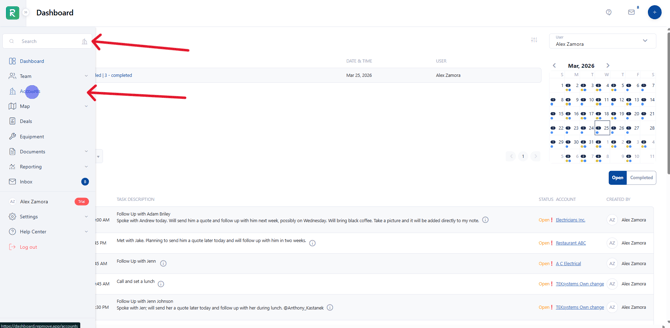
Search for the account:
-
Use the search bar, or
-
Go to the Accounts section in the left-hand menu.
-
-
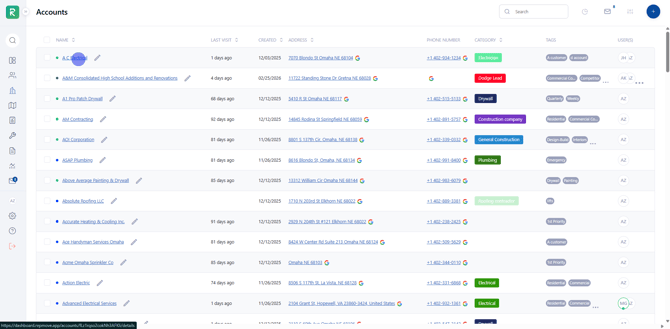
Select the account to open its details page.
-
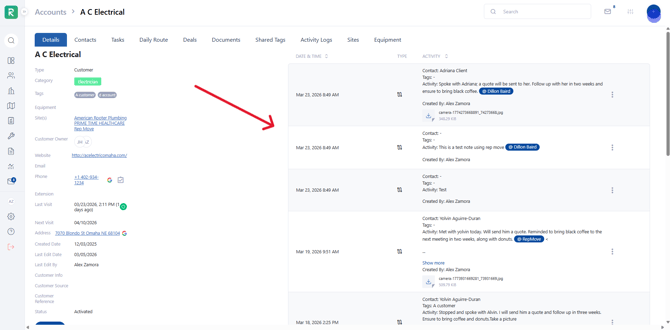
View all previously completed activities associated with that account.
How to Log a New Activity
-
Open the account’s details page.
-
Click the
 (Plus) icon in the top-right corner.
 -
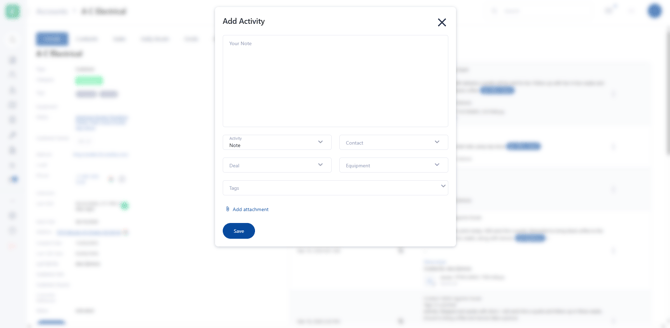
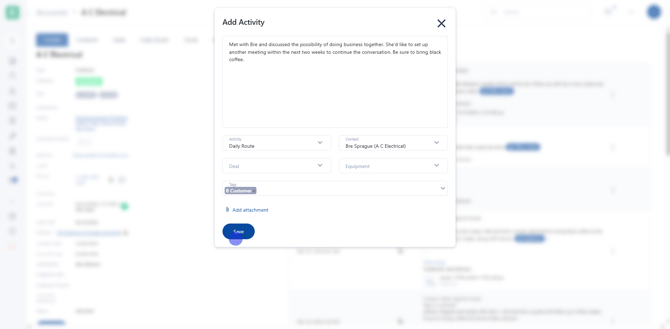
Enter the activity details:
-
Activity Type
-
Contact
-
Deal
-
Equipment
-
Tags
-
Attachment (if applicable)
-
-
Click Save to update the activity log.
Mobile
How to Find Activities
-
Log in to Repmove.
-
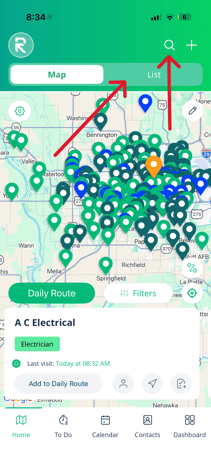
Search for the account:
-
Use the search bar, or
-
Go to the List section in the top right.
-
-
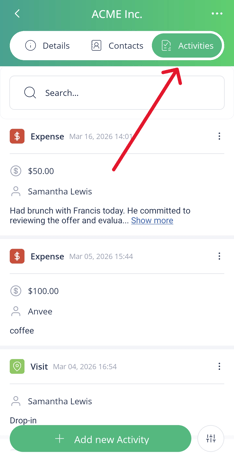
Select the account name to open its details page, and navigate to Activities.
-
View all previously completed activities associated with that account.
How to Log a New Activity
-
Click the
 (Piece of paper with a plus) icon on the card.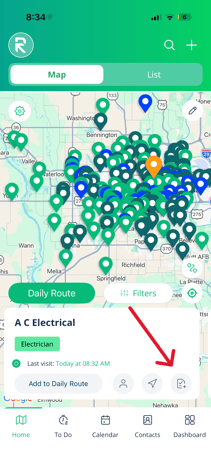
- Select the activity type.
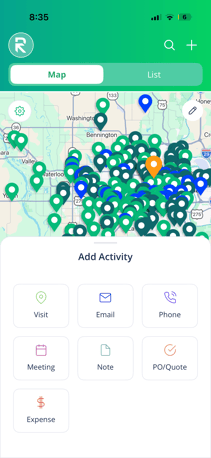
-
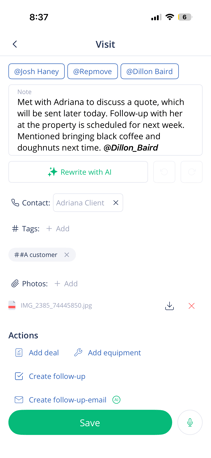
Enter the activity details & take applicable actions:
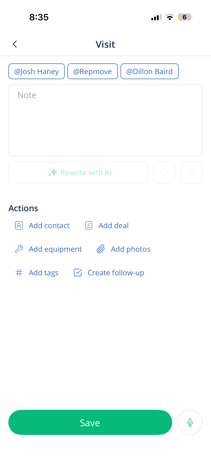
- Add Contact
- Add Deal
- Add Equipment
- Add Photos
- Add tags
- Create follow-up
-
Click Save to update the activity log.
Activities Explained
Visit
Use the Visit Activity button to:
- Review visit details
- Update Last Visit Date
- Track actions taken during a visit
- Log an email directly from the record.
- Use this to keep all email logs in one place.
Phone
- Log phone calls with notes and outcomes.
- Record call details like date, time, and summary.
Meeting
- Log meetings.
- Record meeting details like date, time, and Summary
Note
- Add quick notes or internal comments.
PO / Quote
- Create a Purchase Order or Quote.
- Keeps pricing and order documents tied to the record.
Expense
- Log expenses related to the record.
- Helps track costs tied to deals or customers.
- Create Expense Reports.